Low-latency picture
ScreenCaptureKit capture, VideoToolbox hardware HEVC / H.264, QUIC over one UDP socket with error correction per frame: one lost packet does not hold up the frames behind it.
A sharp picture with little delay, shortcuts and input methods that just work, and paste that never gets it wrong. Connect over the LAN, Tailscale or your own server, and the other side does not even need the app: a browser will do.
The macOS app is feature-complete and being tried out. Rust underneath, Avalonia on top.
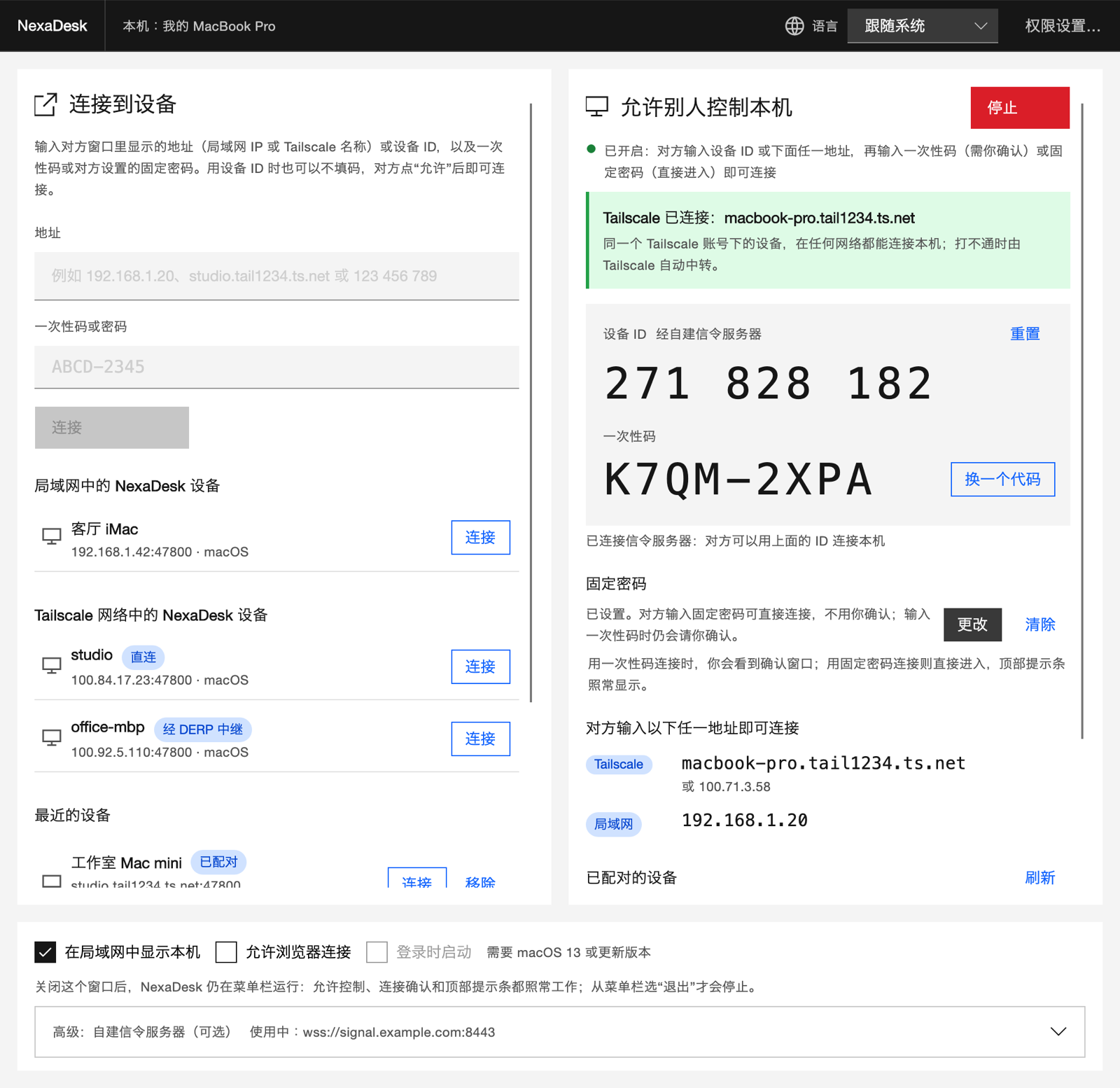
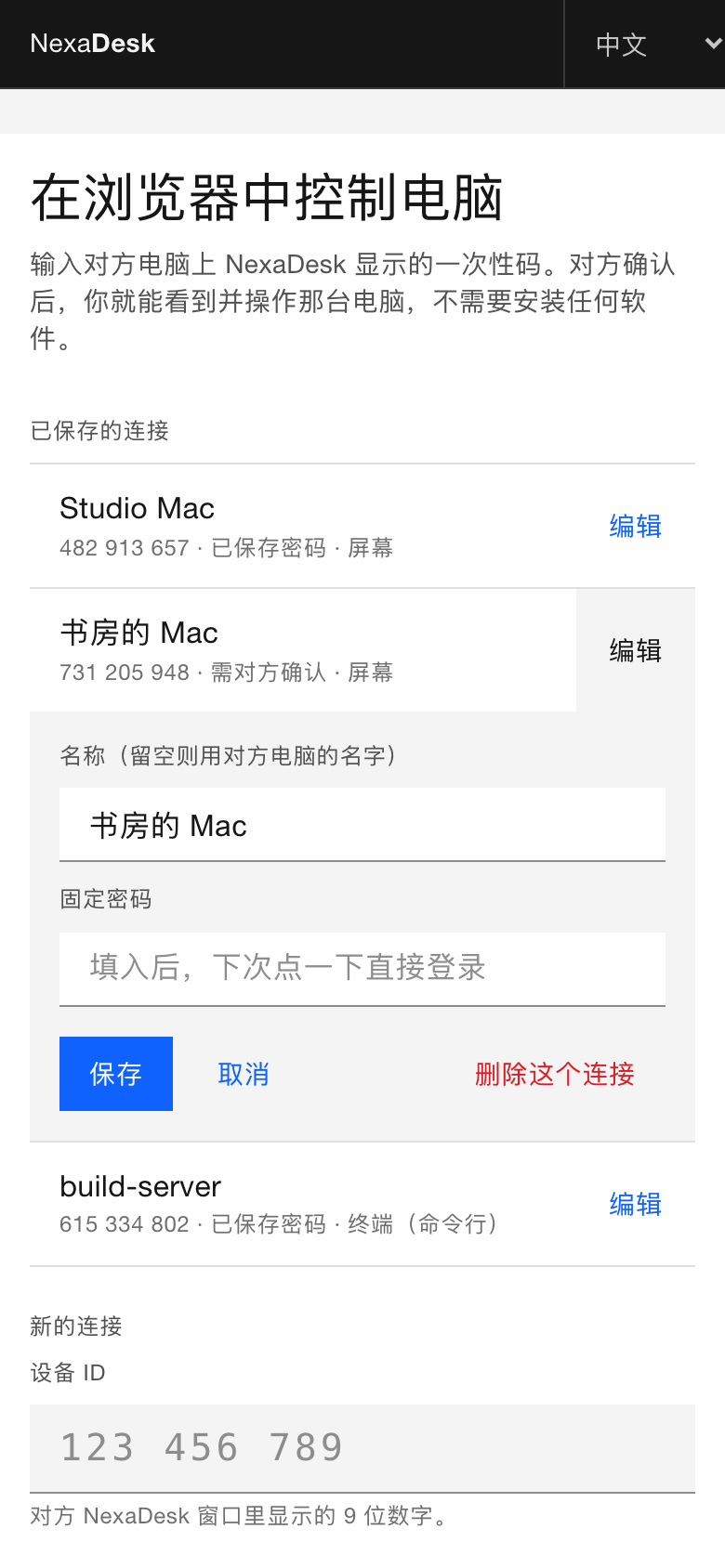
From how the picture is encoded to when a paste is let through, the aim is to feel like the machine in front of you.
ScreenCaptureKit capture, VideoToolbox hardware HEVC / H.264, QUIC over one UDP socket with error correction per frame: one lost packet does not hold up the frames behind it.
LAN, hole punching, port mapping, Tailscale and relays are all tried at once and scored on latency and loss; a faster path found mid-session is switched to on the fly.
Nothing to install on the other side: open the page, type the device ID and one-time code, and see and control the screen, from a phone too.
Keys go by position and shortcuts by intent (⌘C on a Mac controlling Windows sends Ctrl+C); input methods work, and symbols come out as printed on your keyboard.
The clipboard syncs by generation, and a paste waits until the new content has reached the other side: never last time's text. Text and images both sync.
Up to four people can connect to the same Mac, each allowed separately and each able to control; whoever leaves ends only their own session.
Open just the host's terminal if that is all you need; Linux and Windows machines without a desktop run a command-line host you reach from a browser.
Send and receive files, hear the host, switch displays, pick quality and resolution, and reconnect by itself within 30 seconds.
Once the host allows browsers, any browser can connect: the page and the picture travel over WebRTC, end to end encrypted even through a server.
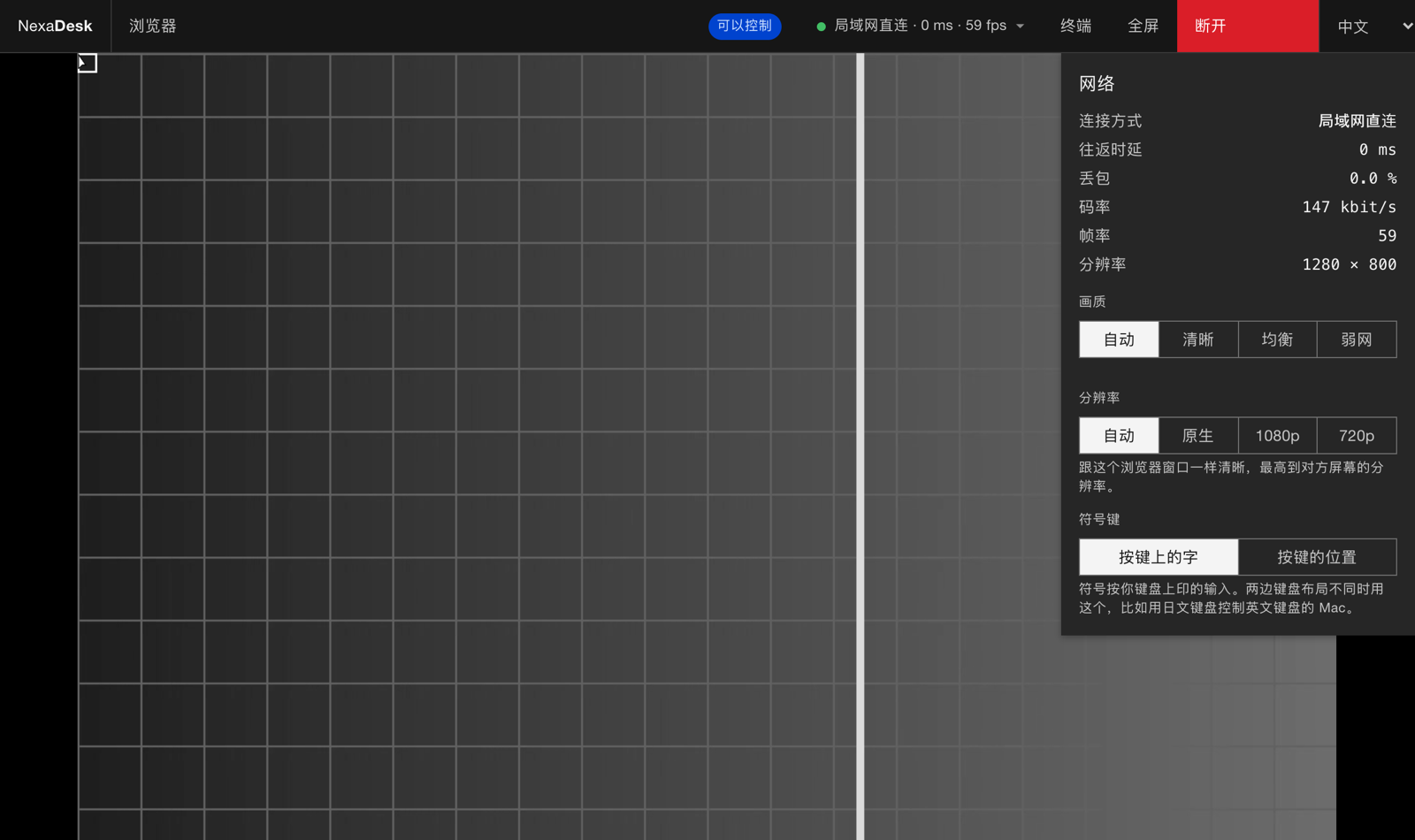
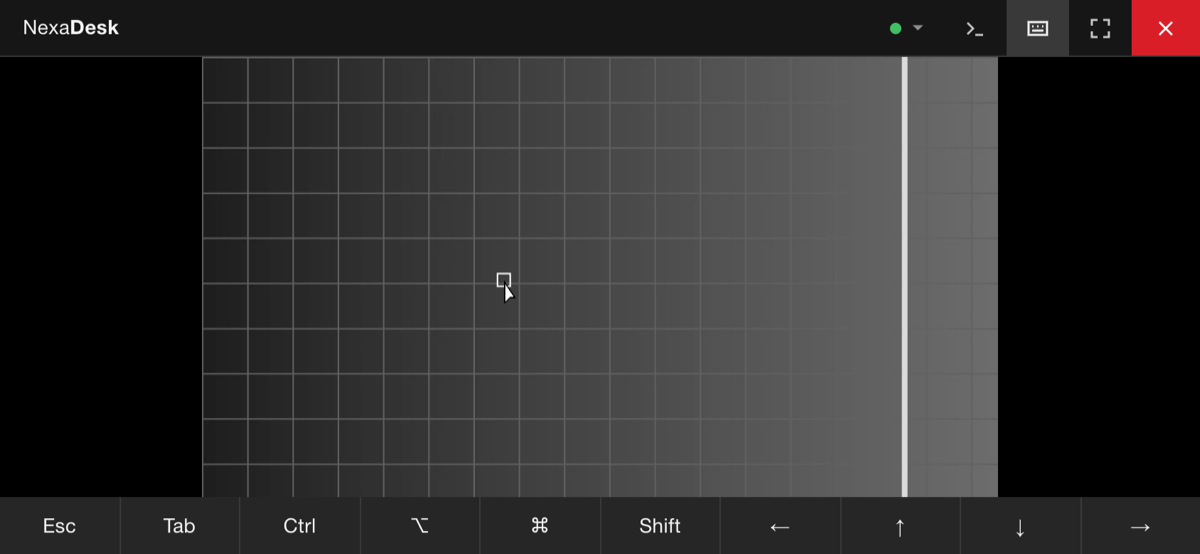
Every path is tried at once and the quickest wins; when the network changes, paths are checked again and the session carries on.
Devices on the same network appear in the list by themselves and connect directly, through no server at all.
Sign both machines in to the same Tailscale account and they reach each other. NexaDesk lists the tailnet's devices and shows whether a path is direct or relayed through DERP.
Connect by a 9-digit device ID: hole punching and router port mapping first, then a UDP relay, and a WebSocket relay where UDP is blocked.
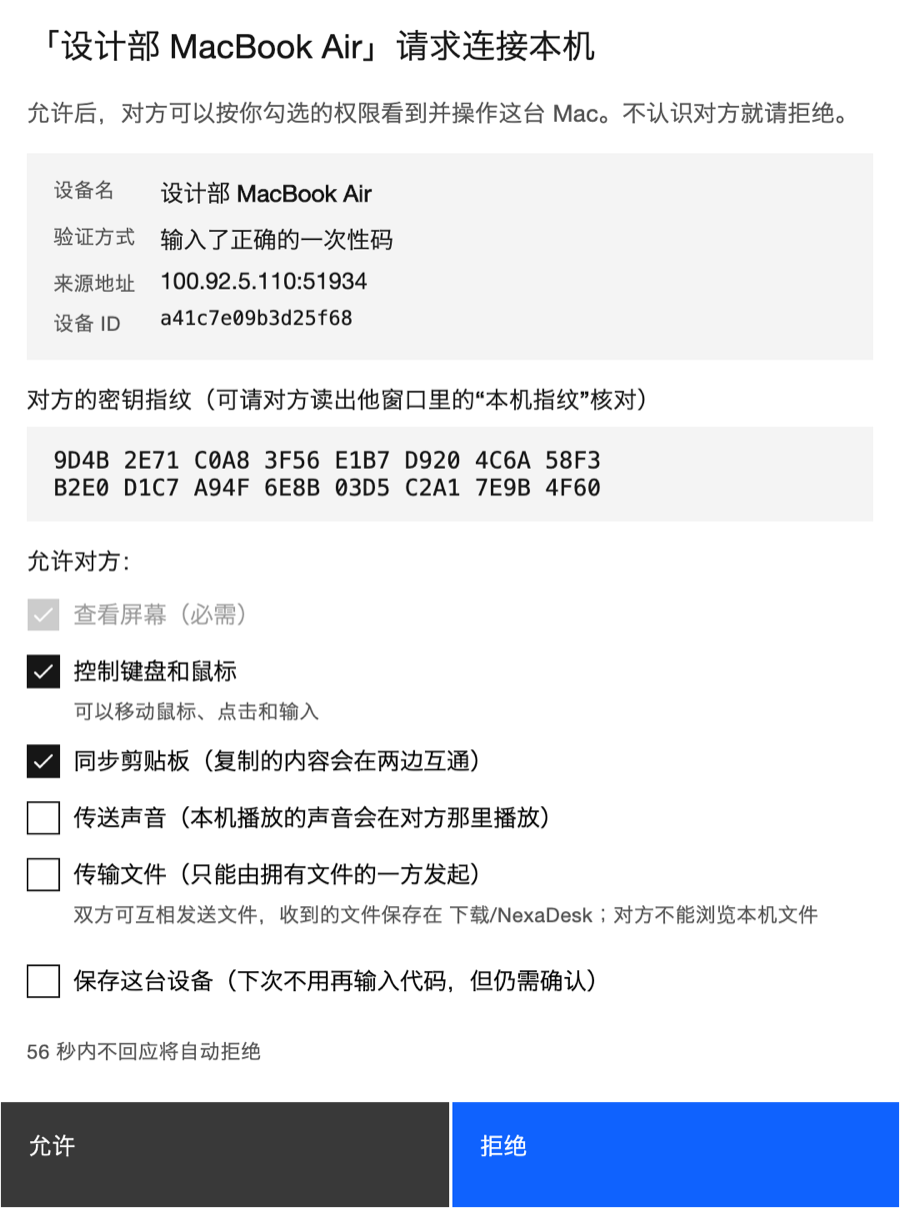
A device's identity is its key. Who is connecting, how they proved it and what they may do are all in view, and in the host's hands.
| Host | Viewer | |
|---|---|---|
| macOS | ✓Available | ✓Available |
| Browser (Chrome, Safari, Firefox, phones) | — | ✓Available |
| Linux (command line) | ✓Available | — |
| Windows (command line) | βNot yet tried on hardware | — |
| Windows (desktop) | …Planned | …Planned |
For now, build it from source. You need Rust and .NET 10.
scripts/package-macos.shopen dist/NexaDesk.appUnder “Allow remote control”, click Start, and grant Screen Recording and Accessibility when asked.
Pick the host or type its address or device ID, then its one-time code.
Running your own server, the command-line host and browser access are covered in the repository's docs. Read the docs →